Full-page screenshots in Chrome, without the broken headers.
ClickSnap is a free Chrome extension that captures an entire scrolling web page as one clean image. Annotate it, blur private details, add a frame and export it, all without anything being uploaded.
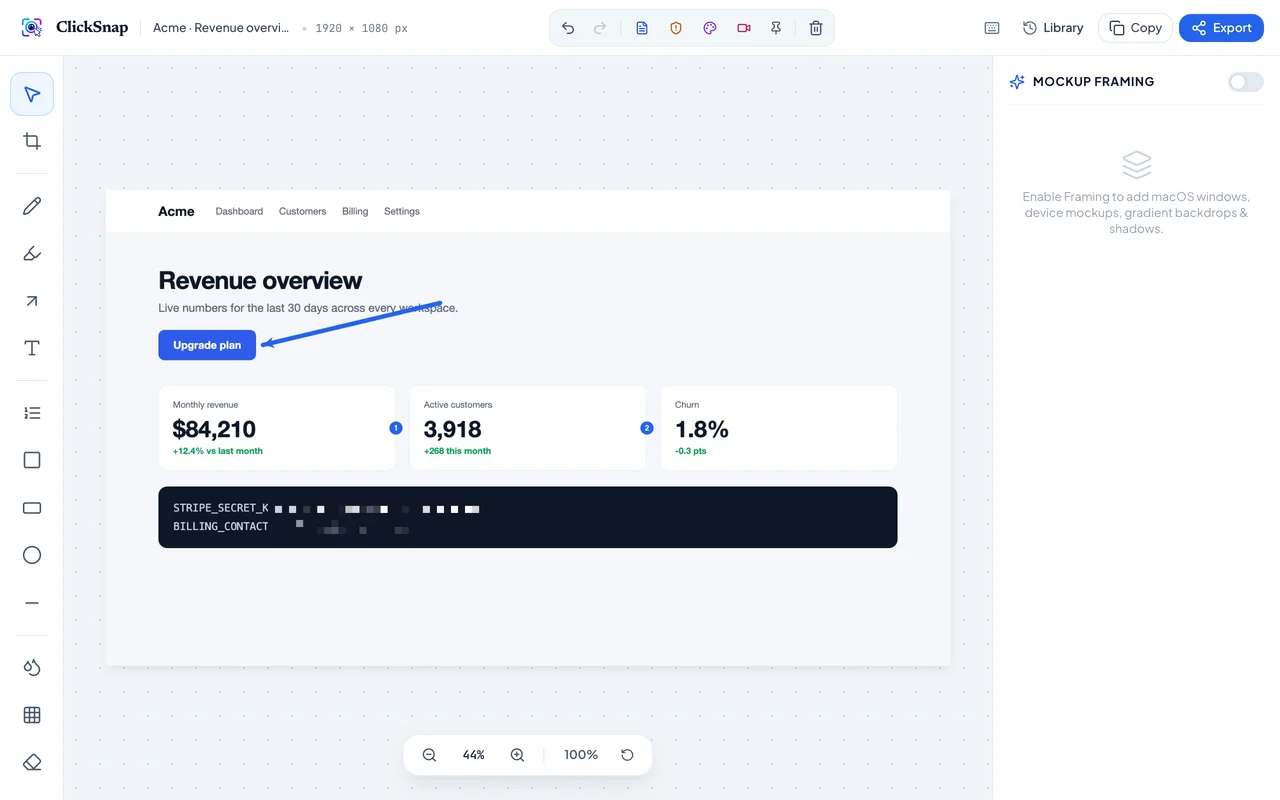
The ClickSnap editor: add an arrow and numbered steps, pixelate a secret key, then frame the result. See how each tool works.
How to take a full-page screenshot in Chrome
Three steps, about ten seconds. No sign-up, no watermark, nothing uploaded.
1
Add ClickSnap to Chrome
Install it from the Chrome Web Store. There’s no account to create.
2
Press the shortcut on any page
AltShiftF (OptionShiftF on a Mac), or click the ClickSnap icon and choose Full Page. ClickSnap scrolls the page and stitches it into one image, hiding sticky headers as it goes.
3
Mark it up and share
Add arrows, numbered steps and text, blur anything private, then copy it to the clipboard or export PNG, JPG or WebP at up to 2× resolution.
Try the editor right here
Pick a tool and drag on the canvas: arrows, numbered steps, text, blur and highlights. Change the background, then copy or download the result.
Frame:
Click and drag on the canvas to draw.
Capture, mark up and share, in one extension
Everything happens in your browser, from the scroll capture to the final export.
Full-page capture that handles sticky headers
ClickSnap hides fixed and sticky elements while it scrolls, trims the overlap between slices and puts everything back afterwards, so navbars appear once at the top instead of on every slice. It works on long apps like Gmail and Notion too.
Fixed and sticky header detection
Follows pages that grow as you scroll
Progress on the toolbar icon, press Esc to cancel
Blur API keys, emails and passwords before you share
Click Find private data and ClickSnap reads the screenshot on your computer, spots emails, API keys, tokens and card numbers, and offers to pixelate them. Or drag a box or brush over anything yourself. Every edit can be undone.
Finds emails, keys and card numbers offline
Blur brush and rectangle pixelate
Unlimited undo and redo
Copy the text out of any screenshot
Click Copy text and ClickSnap reads every word in the screenshot with an OCR engine that runs on your computer, then copies it for you. Handy for error messages, code, tables and anything you can’t select on the page.
Works offline; nothing is uploaded
Reads long full-page captures
English for now, more languages planned
Frames and backgrounds for sharing
Wrap a capture in a macOS Safari window or an iPhone frame on one of 12 gradient backgrounds, pick an aspect ratio, and it’s ready for X, LinkedIn, Product Hunt or your docs.
Safari light and dark, iPhone 15 Pro frames
16:9, 4:3 and 1:1 presets
Export at 2× resolution
A screenshot library that never leaves your computer
Every capture is saved in your browser’s own storage, with no account and no upload. Find old screenshots, reopen them in the editor or export them again, even offline.
Stored locally in IndexedDB
No external API calls
Works offline
Also included
Area and visible captureGrab just the part you need
Delayed capture3, 5 or 10 seconds for menus and hovers
Screen recorderRecord a tab or window as WebM video
Copy textOffline OCR reads every word
Colour paletteEyedropper and dominant colours
Pin a captureKeep it open in a small window
Export anywherePNG, JPG, WebP, PDF or clipboard
Works offlineEverything runs on your computer
Everything paid screenshot tools do, without the subscription
Feature comparison between ClickSnap, basic free extensions and paid apps
Feature
ClickSnap
Basic free tools
Paid apps
Full-page scrolling capture
Yes
Yes
Yes
Sticky headers captured only once
Yes
Varies
Varies
Arrows, text and shapes
Yes
Varies
Yes
Numbered step badges
Yes
Rare
Yes
Blur and pixelate
Yes
Varies
Yes
Find private data automatically
Yes
No
Varies
Copy text from a screenshot (OCR)
Offline
No
Varies
Device frames and backgrounds
Yes
Rare
Varies
Screen recording
WebM
Rare
Yes
Screenshots stay on your computer
Yes
Varies
Often cloud
Price
Free
Free
Subscription
Frequently asked questions
Can’t find your answer? The documentation covers every tool and shortcut.
Is ClickSnap free?
Yes. ClickSnap is 100% free to install and use, with no account, no subscription, no watermarks and no limits on how many screenshots you capture.
How do I take a full-page screenshot in Chrome?
Install ClickSnap from the Chrome Web Store, open the page you want, and press Alt+Shift+F (Option+Shift+F on a Mac), or click the ClickSnap icon and choose Full Page. ClickSnap scrolls the page, stitches every section into one image and opens it in the editor.
How does ClickSnap stop sticky headers repeating in full-page captures?
Before scrolling each section, ClickSnap temporarily hides fixed and sticky elements such as navbars and cookie bars, calculates exact slice offsets, and stitches the final image so the header appears once at the top instead of on every slice.
Are my screenshots uploaded to the cloud?
No. Screenshots, annotations, recordings and history are stored only on your own computer, in your browser’s IndexedDB. The extension sends nothing to any server: no images, no usage data.
Can ClickSnap blur passwords, API keys and other private data?
Yes. Drag a box or brush over anything private and choose blur or pixelate. The covered pixels are replaced in the exported image. For text such as keys and passwords, pixelate at a high strength is the safest choice.
Can ClickSnap copy text from a screenshot?
Yes. Click Copy text in the editor and ClickSnap reads every word in the screenshot with an offline OCR engine that runs on your computer, so nothing is uploaded. Find private data uses the same text to spot emails, API keys and card numbers and offers to pixelate them. Text recognition is English-only for now.
Can ClickSnap record my screen?
Yes. ClickSnap can record a browser tab, a window or your whole screen, with optional audio, and save it as a WebM video. Recordings are kept locally in your browser.
What formats can I export in?
ClickSnap exports lossless PNG, JPG or WebP with adjustable quality, or PDF, at 0.5× to 4× the captured resolution. You can also copy the image straight to the clipboard.
What are the keyboard shortcuts?
By default, Alt+Shift+F captures the full page, Alt+Shift+V the visible area, Alt+Shift+A a selected area and Alt+Shift+S opens the menu (Option instead of Alt on a Mac). You can change them at chrome://extensions/shortcuts.
Does ClickSnap work offline?
Yes. Capture, editing, framing, redaction and history all run client-side with Canvas and IndexedDB, so ClickSnap works without an internet connection.
Who makes ClickSnap?
ClickSnap is built by Sarangan Raviraj (founder and lead extension architect) and Sahana Ravichandran (product and UX engineer).
Capture your first full page in the next minute.
Free, with no account and no watermark. Your screenshots stay on your computer.