How to Record a Browser Tab in Chrome (Free, No Watermark)
Record a tab, a window or your whole screen with audio, and keep the file on your computer.
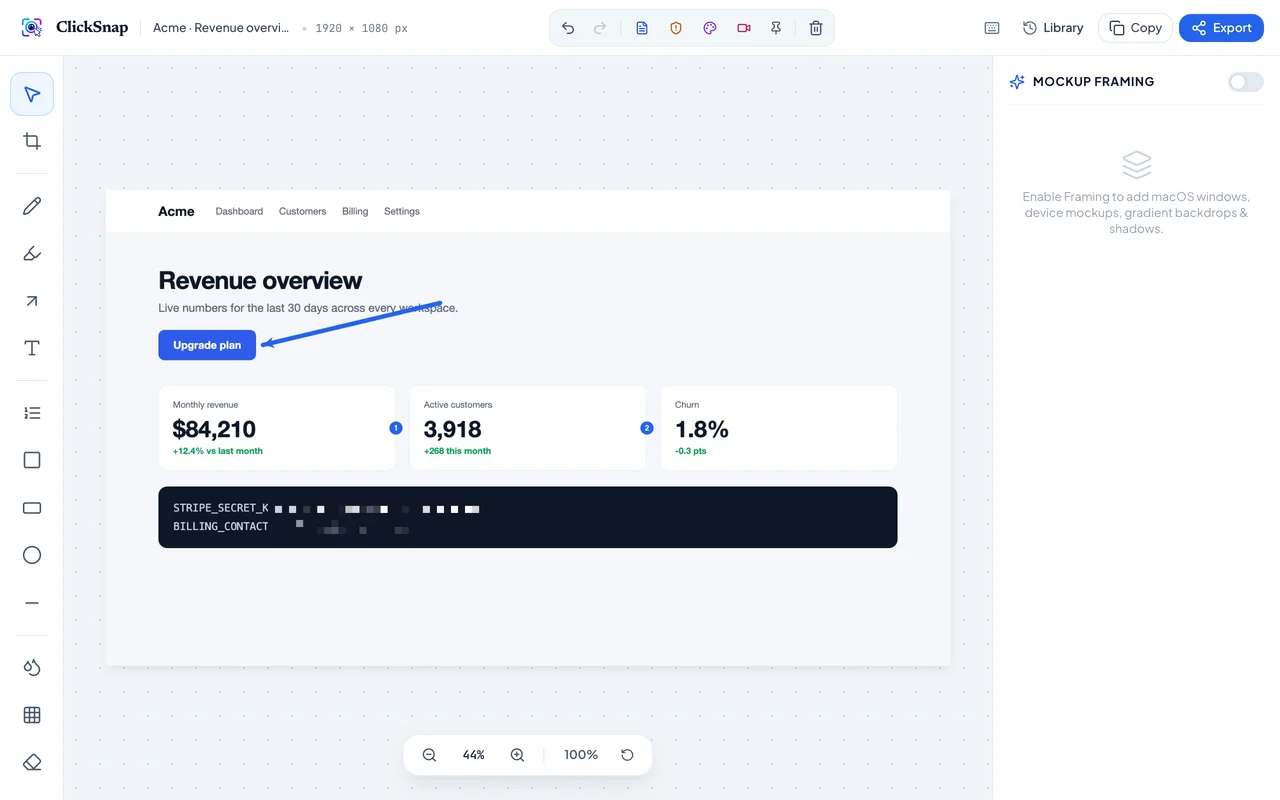

To record a browser tab in Chrome for free, open ClickSnap’s menu and choose Record screen, pick a tab, window or your whole screen, optionally include audio, and click Stop when you’re done. ClickSnap saves the recording as a WebM video with no watermark, and you can drop any frame into the screenshot editor.
How to record
- Install ClickSnap.
- Open the ClickSnap menu and click Record screen.
- Choose whether to include audio (tab audio, plus your microphone if you want narration).
- Click record and choose what to share: a Chrome tab, a window or your entire screen.
- Do what you want to show, then click Stop.
- Click Download video (WebM).
Grab a still from the recording
Use Drop Frame into Studio to turn the current frame into a screenshot, then add arrows or blur like any other capture.
About WebM
WebM plays in Chrome, Edge, Firefox and most modern apps, and uploads fine to Slack, Jira, Linear, GitHub and YouTube. If an app needs MP4, convert it with a free tool such as HandBrake.
ClickSnap doesn’t make GIFs at the moment. Recordings stay on your computer, and nothing is uploaded.
Recording tips
- Close unrelated tabs and notifications first.
- Keep it short: 10–30 seconds is enough for a bug report.
- Narrate what you expect versus what happens.
- Choose the tab option if you only need one page; it keeps other windows private.
Start capturing with ClickSnap today
Lossless full-page scrolling with smart sticky suppression, 14 annotation tools, and 100% private local storage.