How to Screenshot a Specific Area in Chrome
Grab exactly the part you need instead of cropping later.
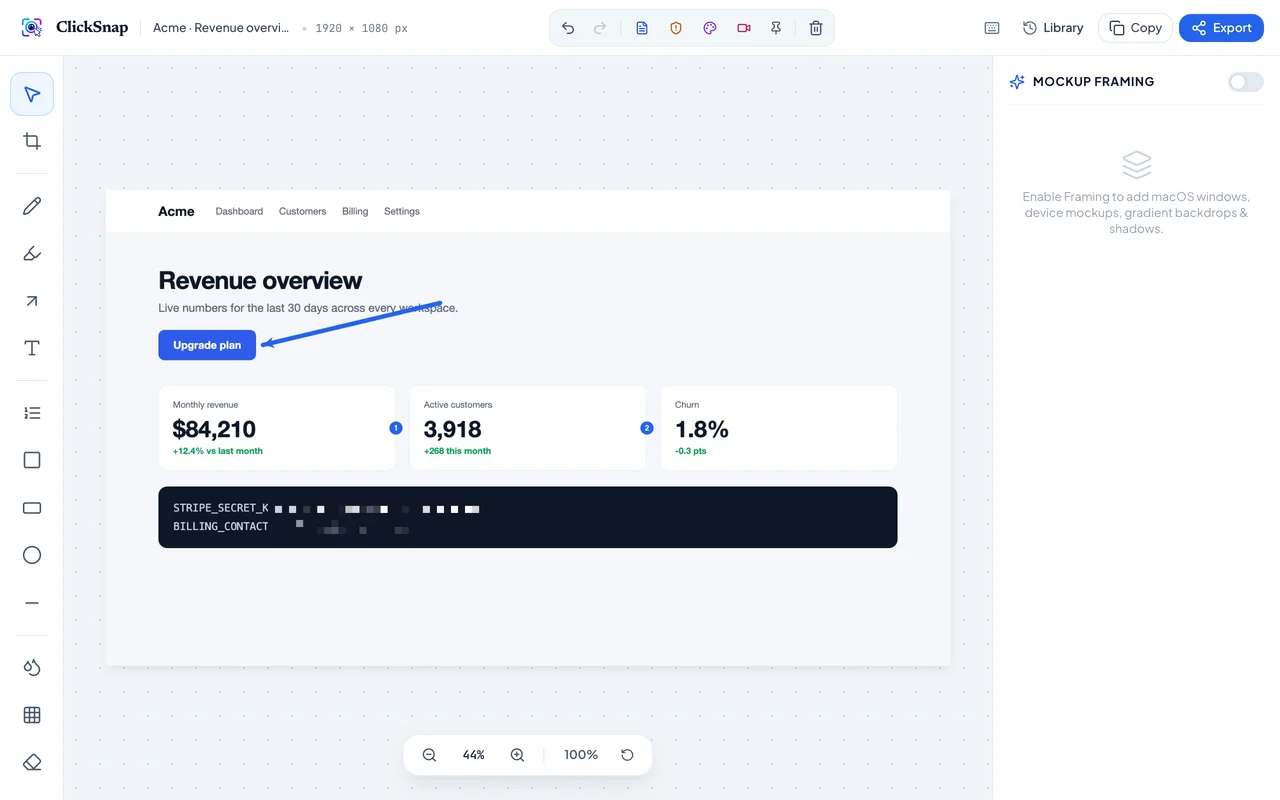

To screenshot a specific area in Chrome with ClickSnap, press Alt+Shift+A (Option+Shift+A on a Mac), drag a box around what you need and press Enter; Esc cancels. Built-in options: Win+Shift+S on Windows, Cmd+Shift+4 on a Mac, and Ctrl+Shift+Show windows on a Chromebook.
With ClickSnap
- Install ClickSnap.
- Press `Alt + Shift + A` (`Option + Shift + A` on a Mac), or open the ClickSnap menu and choose Select Area.
- Drag a box around what you want. Adjust it with the handles.
- Press Enter to capture, or Esc to cancel.
The editor opens with just that area, ready for arrows, numbered steps, blur and one-click copy.
Built-in shortcuts
| System | Shortcut | Notes |
|---|---|---|
| Windows | `Win + Shift + S` | Snipping Tool; copies to clipboard |
| Mac | `Cmd + Shift + 4` | Saves to Desktop; add Ctrl to copy instead |
| Chromebook | `Ctrl + Shift + Show windows` | Saves to Downloads |
These are fine for a quick grab. Use ClickSnap when you’ll annotate, blur or frame the result, or when the area is part of a page you’ll want to capture in full later.
Capturing menus and hover states
Menus close when you press a key. Use Delayed Capture in the ClickSnap menu (3, 5 or 10 seconds), open the menu, and wait for the countdown. See capturing dropdowns and hover states.
Start capturing with ClickSnap today
Lossless full-page scrolling with smart sticky suppression, 14 annotation tools, and 100% private local storage.